
Local administrator password solution (LAPS): Tips and best practices
Oct 22, 2026
A local administrator password solution (LAPS) limits how far a stolen administrator credential can travel because every computer gets its own automatically rotated password. LAPS, a Microsoft feature that stores each password in Active Directory or Microsoft Entra ID, now ships inside Windows as Windows LAPS and replaces the deprecated legacy product. It limits lateral movement but still leaves a standing administrator account.
Shared local administrator passwords turn one compromised machine into access to every machine that uses them, a problem a local administrator password solution addresses. Setting a unique password on each device prevents that reuse but creates an inventory problem, because every credential needs storage and regular refreshes.
Managing that by hand becomes unworkable, so many administrators disable the account, and 76% of organizations can't immediately revoke standing access when it's no longer needed, according to the Netwrix 2026 Data and Identity Security Report.
The account still earns its place for walk-up repairs, such as resetting a broken domain trust relationship or hardcoding an IP address when other options fail. Windows LAPS keeps that recovery access and automates the password management around it.
What is LAPS?
LAPS is a Microsoft tool that lets administrators manage the local administrator password of domain-joined computers and store it in Active Directory. In its current version, Windows LAPS can also back up the password to Microsoft Entra ID. Each device generates its own random password that meets defined length and complexity requirements, so no two machines share a credential.
How LAPS works
Every managed device runs the same cycle, driven by a background task that processes the active policy every hour independently of the Group Policy refresh cycle.
Password generation
When a policy that enables Windows LAPS reaches the device through Group Policy or Microsoft Intune, the device generates a random password that meets the policy's length and complexity requirements and applies it to the managed local administrator account.
Directory storage
The device then stores the password in the configured directory, together with an expiration time based on the policy's password age. In Active Directory, the password sits in a confidential attribute on the computer object, in clear text or encrypted. Each device writes its own, so the computer needs write permission on its LAPS attributes while a separate, smaller group holds read permission.
Rotation
When the expiration time arrives, the device generates and stores a new password. Rotation can also happen early, whether an administrator runs Reset-LapsPassword on the device, sets the expiration time in the directory, or relies on the policy to rotate the password after the managed account signs in.
Retrieval
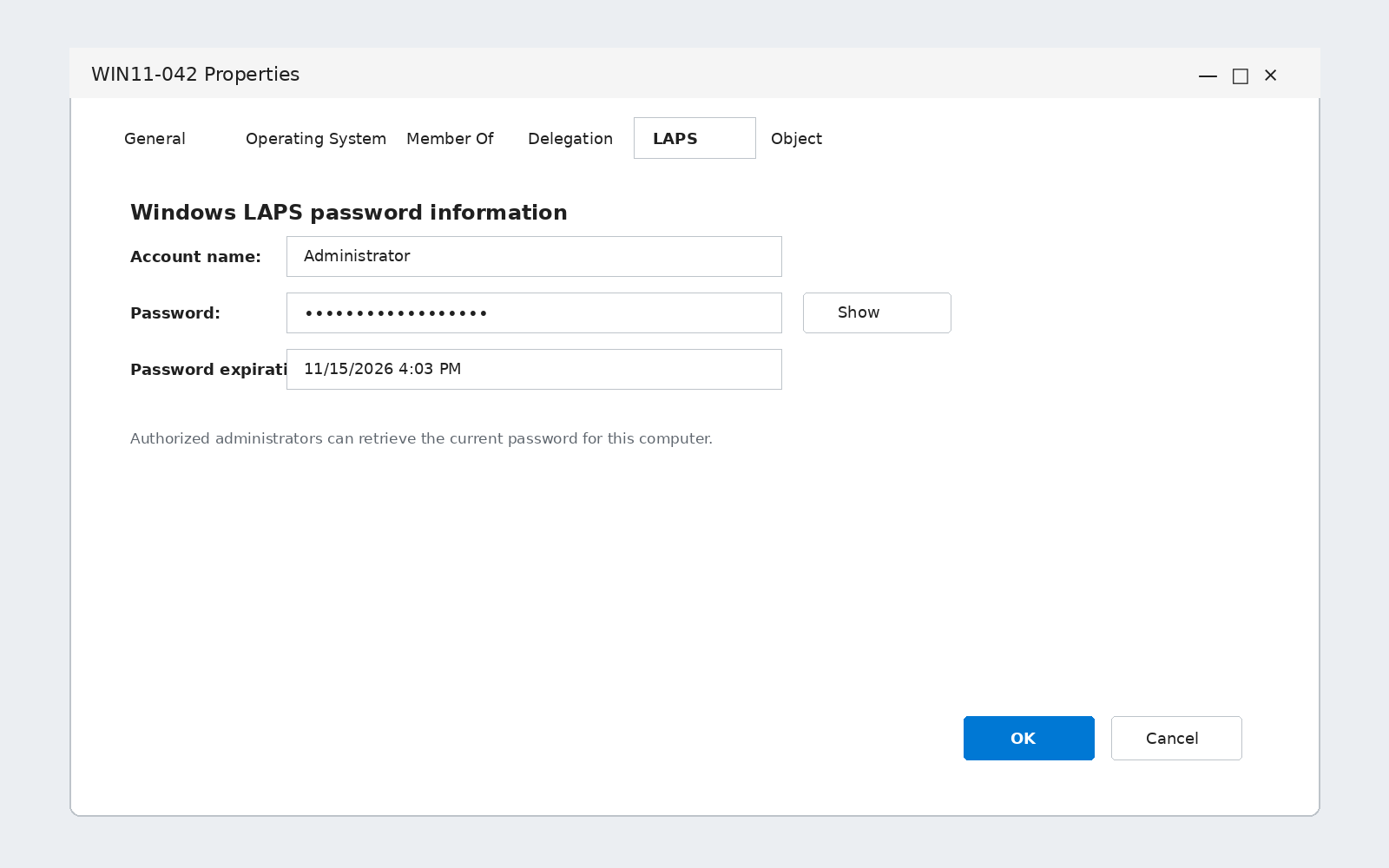
An authorized administrator retrieves the password when they need to sign in to that machine, through PowerShell or Active Directory Users and Computers.
Netwrix Privilege Secure creates a task-scoped account for each administrative session and removes it when the session ends. Request a demo.
What LAPS protects against
LAPS targets a weakness in the local administrator credential itself: the same password on many machines, a password that stays valid after use, and a password readable by too many people.
Pass-the-hash and lateral movement
A pass-the-hash attack reuses a stolen password hash without cracking it, and a shared local administrator password makes that hash valid on every machine that uses it, so one compromised workstation opens lateral movement across the fleet. With LAPS, each device has a different password, so a hash stolen from one machine authenticates to that machine only.
Shared credentials in help desk work
Remote help desk work needs local administrator access, and a password that many technicians know and nobody rotates keeps that access open long after the ticket closes. With LAPS, a technician retrieves the password for one machine, signs in, and the password rotates after use, so the credential they learned stops working.
Unreachable devices
A device with a broken domain trust, or one whose domain accounts can't sign in, is still reachable through its local administrator account as long as someone knows the current password. LAPS keeps that password in the directory, so administrators can sign in to and recover devices that would otherwise be inaccessible.
Unauthorized password reads
Stored passwords become a target themselves, so the access control model matters. Active Directory permissions and optional encryption decide who can read or decrypt each password, and Microsoft Entra ID uses role-based access control, so only authorized readers retrieve a given password.
Windows LAPS vs legacy Microsoft LAPS
Two products share the LAPS name, and the differences decide where passwords live, whether they're encrypted, and how long Microsoft will fix problems.
Legacy Microsoft LAPS | Windows LAPS |
|
|---|---|---|
|
How it's delivered |
Separate MSI download with a Group Policy client-side extension |
Built into Windows and Windows Server |
|
Where it stores passwords |
Active Directory only ( |
Active Directory or Microsoft Entra ID, not both |
|
Encryption in Active Directory |
None; clear text |
Optional, at domain functional level 2016 or later |
|
Password history |
None |
Supported when encryption is enabled |
|
Supported accounts |
One local administrator account |
The built-in administrator or the account named in |
|
Status |
Deprecated as of Windows 11 23H2 and later |
Current |
Windows LAPS is a separate implementation, not an update to the legacy product, so the two can run on one device only if they manage different accounts.
What Windows LAPS adds
Windows LAPS shipped in the April 11, 2023 Windows updates and is built into the operating system, so you don't need to push a client package.
- Backup to Microsoft Entra ID became generally available on October 23, 2023, which brings Entra-joined and hybrid-joined devices under the same model.
- In Active Directory, Windows LAPS can encrypt stored passwords and maintain a password history, and domain controllers can back up their DSRM account password.
- Windows 11 24H2 and Windows Server 2025 add passphrase generation and automatic account management.
- Every version writes to a dedicated event log and ships a PowerShell module,
LAPS, that replaces the legacyAdmPwdcmdlets.
What deprecation means for legacy LAPS
Microsoft deprecated legacy Microsoft LAPS as of Windows 11 23H2 and later. Newer operating systems block the legacy installer, and Microsoft no longer considers code changes for the product. Support continues on older Windows versions only until those versions reach their own end of support.
Windows LAPS includes a legacy emulation mode that honors an existing legacy policy while you migrate. Treat it as a bridge, because it stores the password in clear text and can't use encryption or password history.
Which version to use
Use Windows LAPS for new deployments on Windows 11 23H2 and later and Windows Server 2025 and later. Earlier supported releases, including Windows 11 22H2 and 21H2, Windows Server 2022 and 2019, and Windows 10, need the April 11, 2023 update or later.
Windows 10 reached end of support on October 14, 2025, and Windows LAPS remains available only on Windows 10 devices that still receive updates, such as through the Extended Security Updates program. For new deployments, use Windows 11 or a supported version of Windows Server.
Netwrix Privilege Secure replaces standing admin accounts with just-in-time privileged sessions that revoke automatically. Request a demo.
How to set up and use Windows LAPS
These steps deploy Windows LAPS to domain-joined devices that back up passwords to Active Directory.
Step 1: Check the requirements
Confirm that each device runs a supported operating system with the April 11, 2023 update or later, and that it's joined or hybrid-joined to Active Directory. Password encryption requires a domain functional level of 2016 or later, and DSRM backup requires domain controllers running Windows Server 2019 or later.
Run the next steps from a server or workstation that has the Windows LAPS PowerShell module, which ships with the update.
Step 2: Update the Active Directory schema
Extend the schema once per forest so Windows LAPS can store passwords in new attributes on the computer object. Run the cmdlet on a Windows Server 2019 or later domain controller, or on a server that has the module:
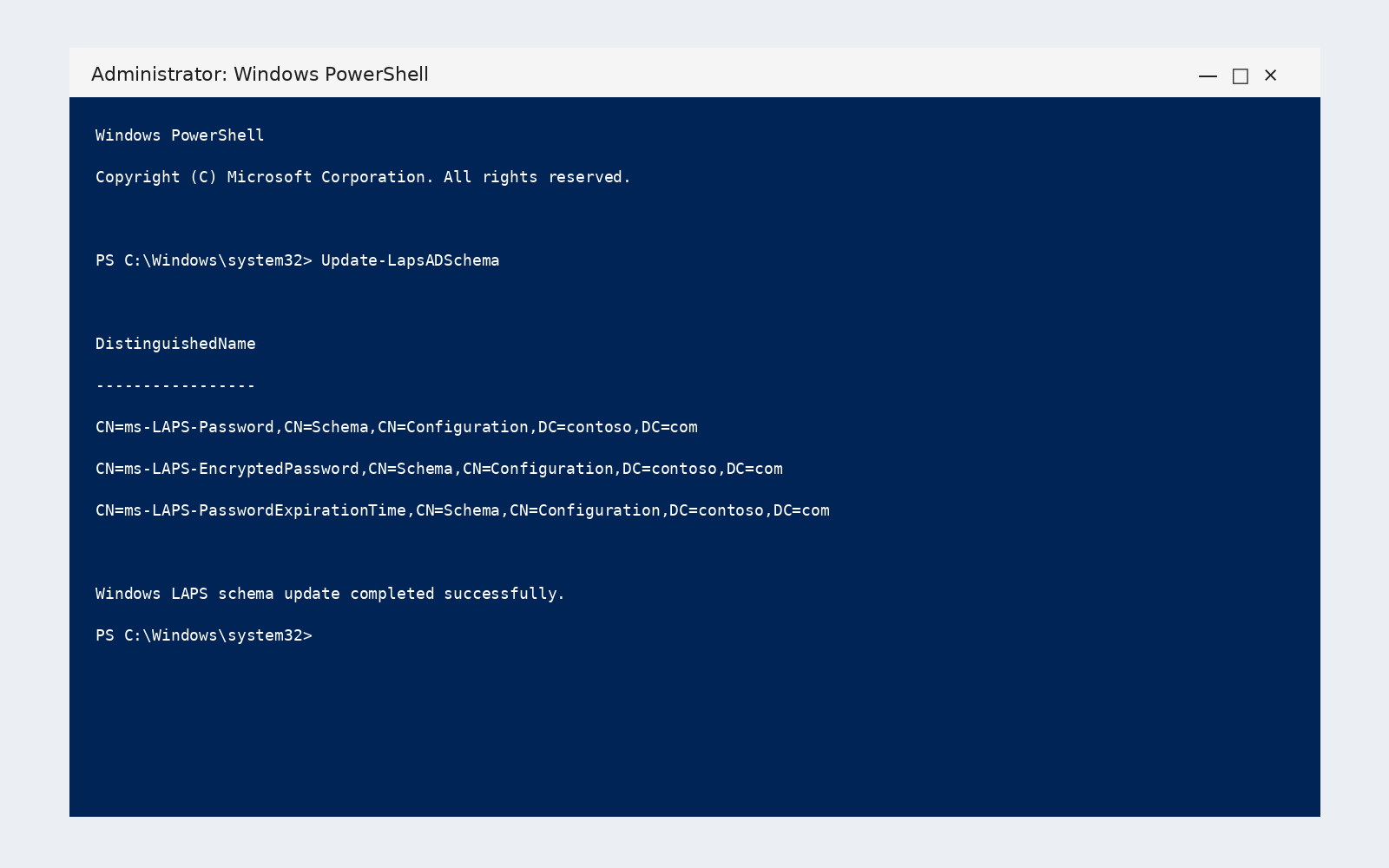
Update-LapsADSchema
The cmdlet adds schema attributes such as msLAPS-Password, msLAPS-EncryptedPassword, and msLAPS-PasswordExpirationTime. Other domains in the same forest don't need it repeated.
Step 3: Grant permissions
A deployment needs devices that write their own passwords, a group that reads them, and a group (often the same one) that can force an expiration. Grant each against the organizational unit that holds the computers:
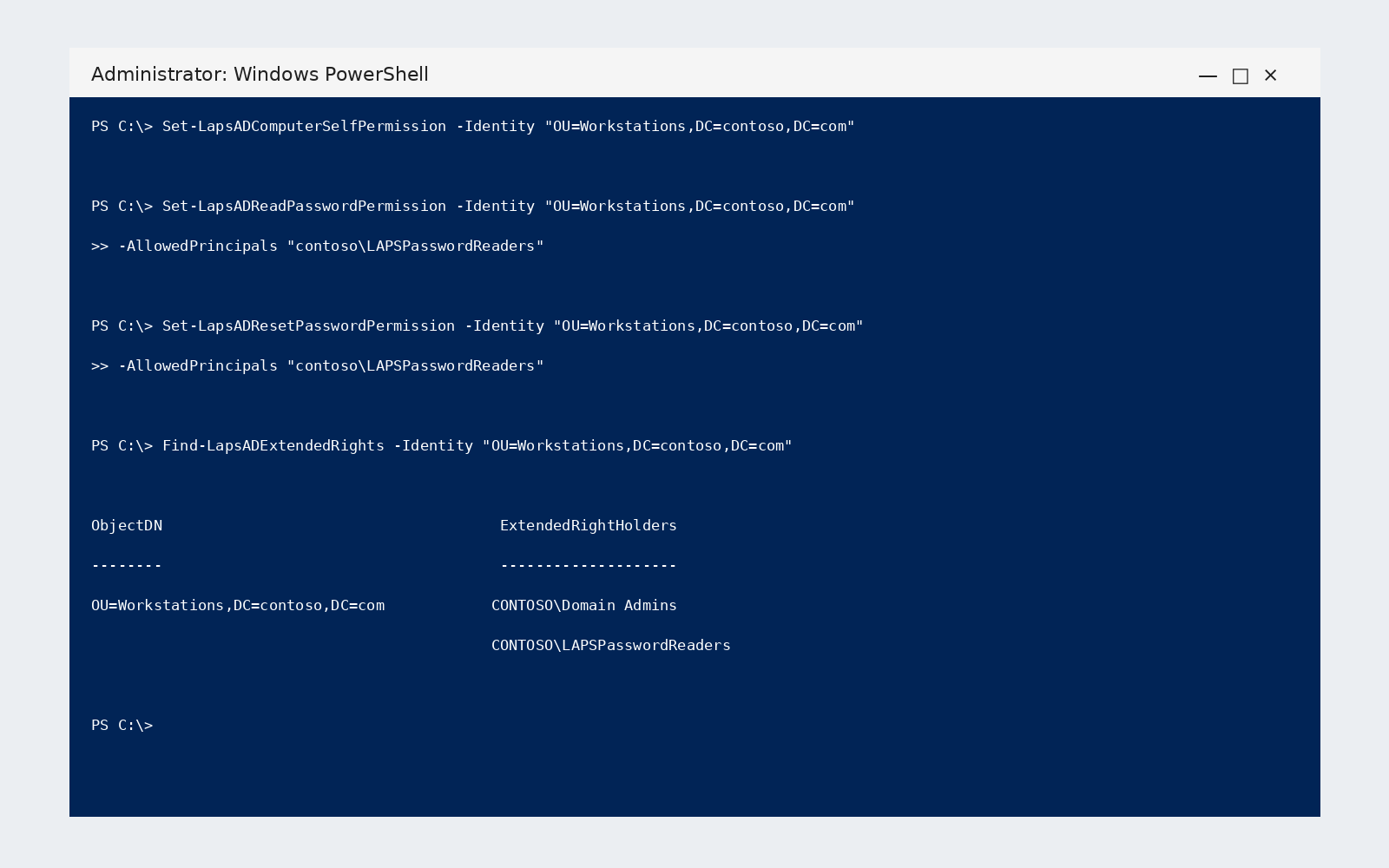
      Set-LapsADComputerSelfPermission -Identity "OU=Workstations,DC=contoso,DC=com"
Set-LapsADReadPasswordPermission -Identity "OU=Workstations,DC=contoso,DC=com" -AllowedPrincipals "contoso\LAPSPasswordReaders"
Set-LapsADResetPasswordPermission -Identity "OU=Workstations,DC=contoso,DC=com" -AllowedPrincipals "contoso\LAPSPasswordReaders"
Then check who already holds extended rights on that OU. Every Windows LAPS password attribute is confidential, so any principal with extended rights can read them:
Find-LapsADExtendedRights -Identity "OU=Workstations,DC=contoso,DC=com"
Remove the extended rights from any principal that shouldn't read passwords.
Step 4: Configure the policy in Group Policy
Create a computer-side Group Policy object (GPO), open Computer Configuration > Policies > Administrative Templates > System > LAPS, and configure the Windows LAPS policy settings. The LAPS.admx template ships in the local PolicyDefinitions folder, and if you use a central store, copy it there by hand because Windows updates don't do it for you.
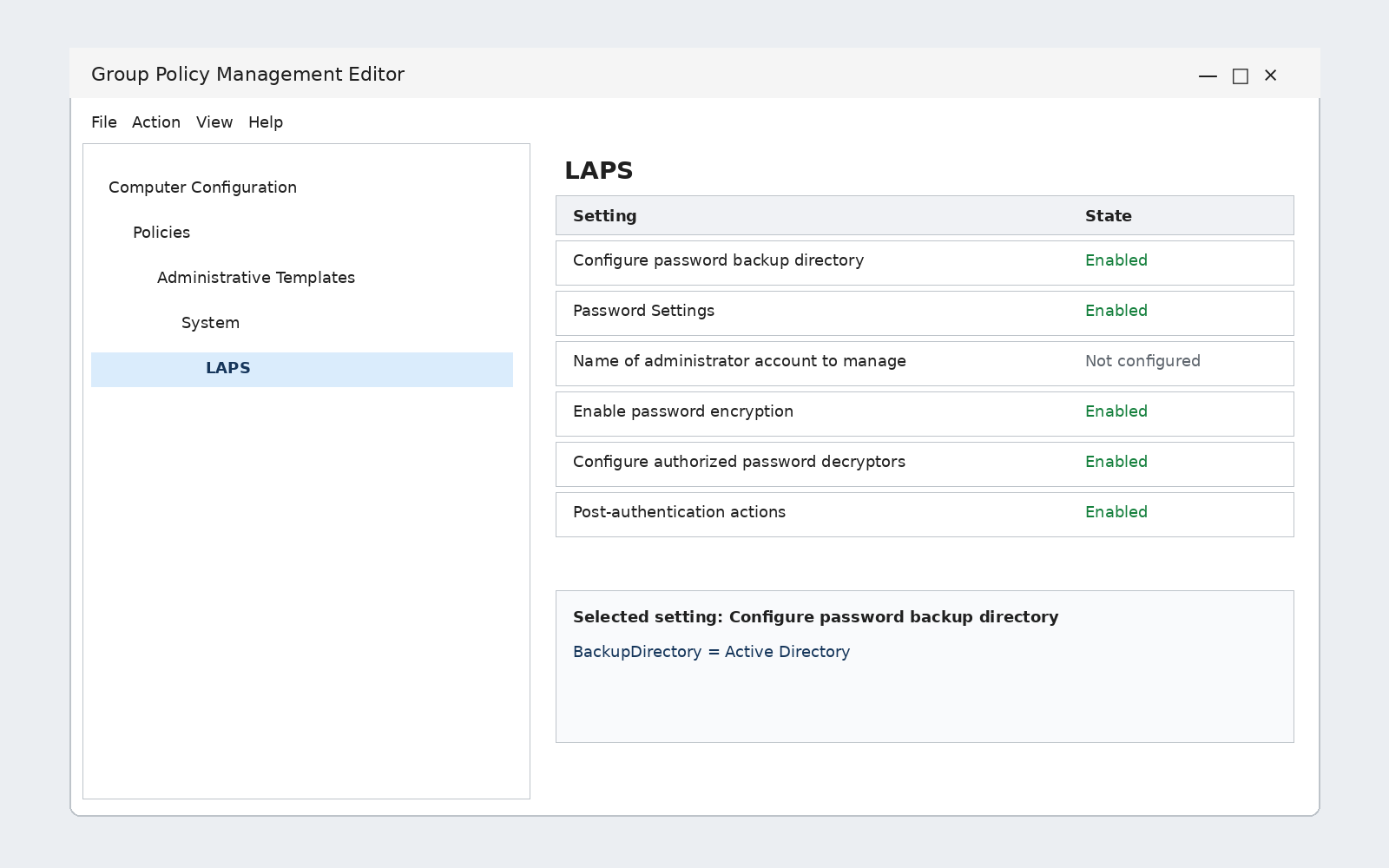
Set BackupDirectory to 2 for Active Directory, and leave AdministratorAccountName unconfigured to manage the built-in administrator account, which Windows LAPS identifies by its well-known relative identifier rather than its name, and configure it only for a custom account. Windows LAPS doesn't create that custom account, so create it first, unless you enable automatic account management on Windows 11 24H2 or Windows Server 2025.
Also rename the built-in account to make it slightly harder to guess, although the account's well-known identifier limits the benefit. When you leave the password settings unconfigured, PasswordAgeDays defaults to 30, PasswordLength to 14, and PasswordComplexity to 4.
Step 5: Verify the policy applied
On a target device, look in the Windows LAPS event log for event ID 10018, which confirms the password was written to Active Directory. If you don't want to wait for the hourly cycle, process the policy now:
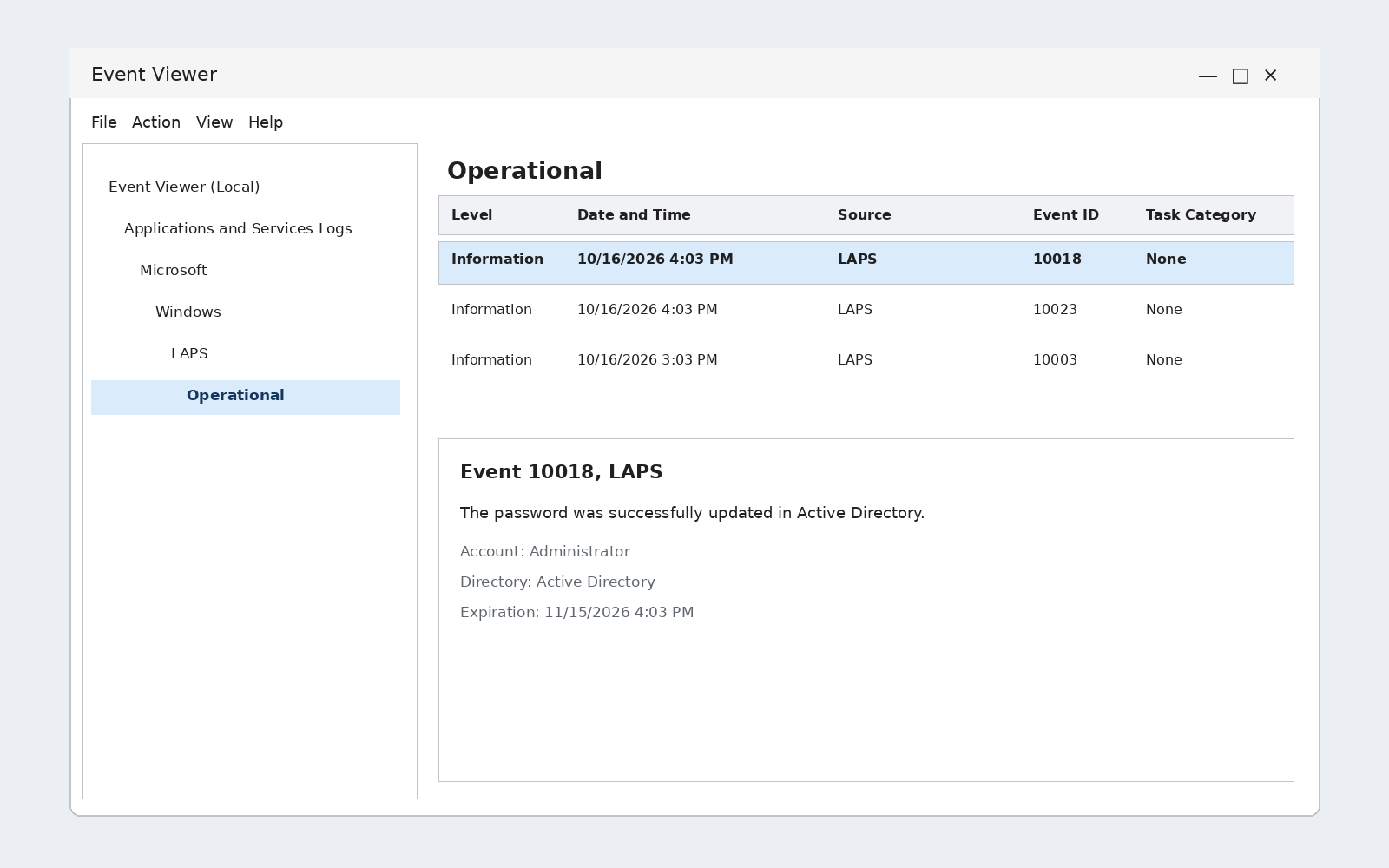
Invoke-LapsPolicyProcessing
Then check that the computer object has a new or updated msLAPS-PasswordExpirationTime attribute. If event 10018 never appears or the attribute stays empty, recheck the GPO link and the self-write permission from step 3.
Step 6: Retrieve a password
Retrieve the current password for a specific machine when you need access to it, using an account in the reader group from step 3:
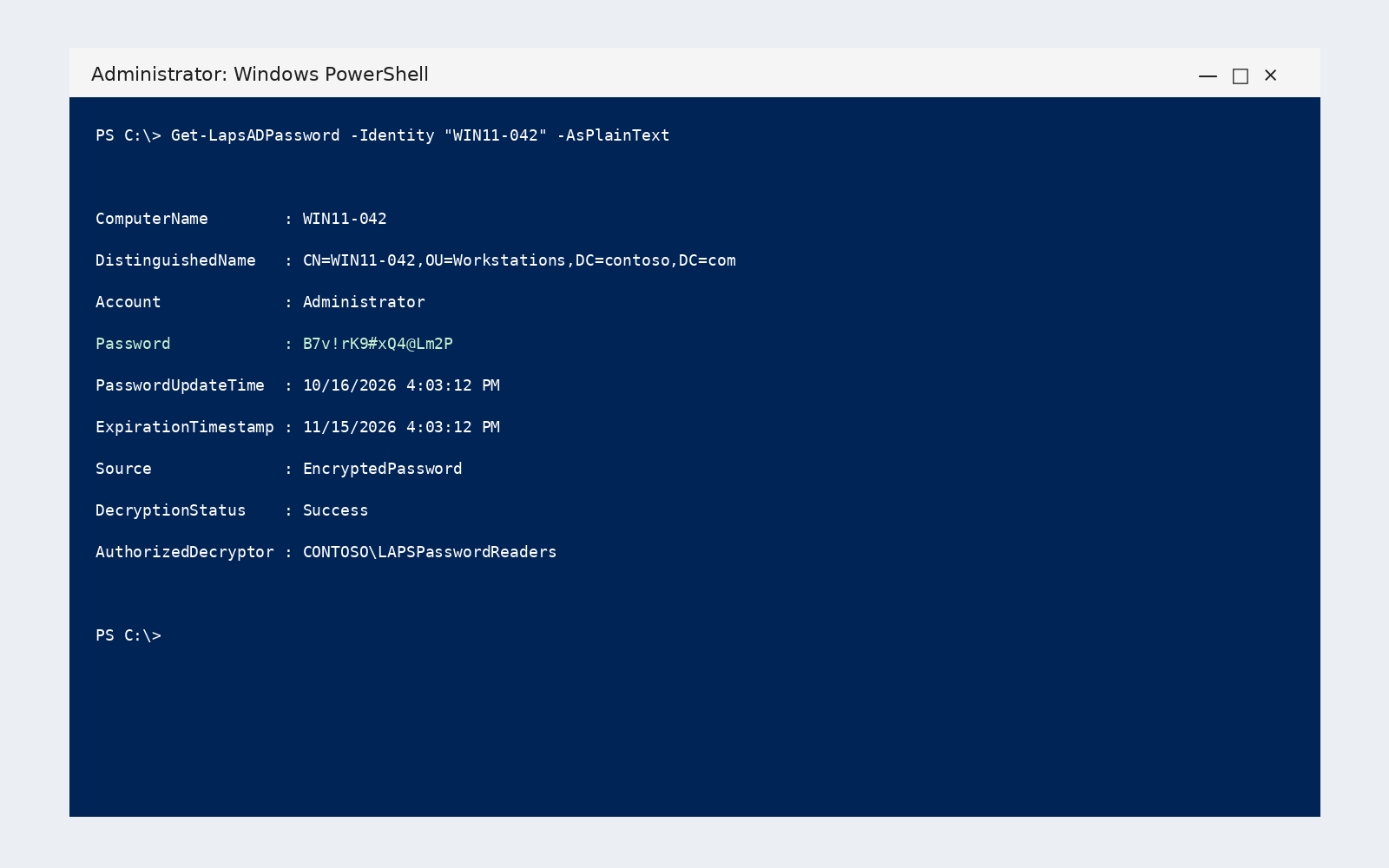
Get-LapsADPassword -Identity "name of computer" -AsPlainText
The same people can read the password from the computer object's properties in Active Directory Users and Computers.
Step 7: rotate a password on demand
After a technician uses a password, or after any event that could have exposed it, rotate it. On the device itself, run:
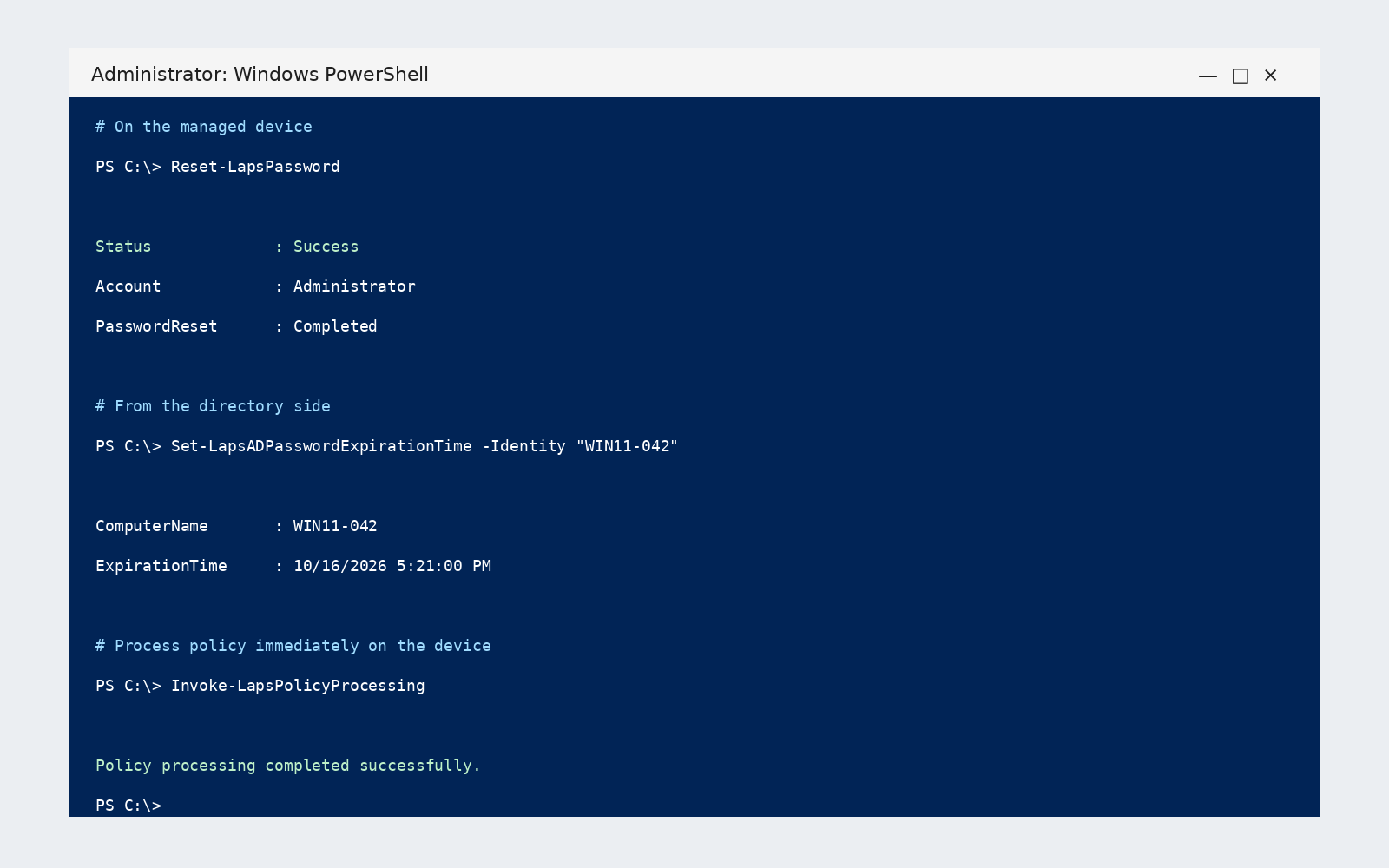
Reset-LapsPassword
From the directory side, set the expiration time to now, and the device rotates at its next policy cycle, or immediately if you run Invoke-LapsPolicyProcessing on it:
Set-LapsADPasswordExpirationTime -Identity "name of computer"
With these seven steps in place, every device in the organizational unit holds its own password in Active Directory. The reader group can retrieve and rotate it, and the hourly policy cycle keeps the rotation schedule running without further work.
Windows LAPS with Microsoft Entra ID
Devices joined only to Microsoft Entra ID back up only to Entra ID, devices joined only to Active Directory back up only to Active Directory, and hybrid-joined devices choose one of the two, never both. Entra ID needs no schema extension or Active Directory permissions, so the setup steps above don't apply to those devices.
An administrator must first enable Windows LAPS for the tenant, because Entra ID doesn't accept new passwords from managed devices by default.
Policy comes from Microsoft Intune and the Windows LAPS configuration service provider with BackupDirectory set to 1, and retrieval runs through Microsoft Graph with Get-LapsAADPassword or the Entra and Intune portals.
Entra role-based access control secures the passwords, and by default only the Global Administrator, Cloud Device Administrator, and Intune Administrator roles can retrieve them, so review who holds those highly privileged roles.
How to migrate from legacy LAPS to Windows LAPS
Legacy deployments are still common, so identify yours before migrating. A legacy deployment uses the downloadable Microsoft installer, its Group Policy client-side extension (the AdmPwd extension), management tools for the Group Policy Management Console, and the AdmPwd.admx and AdmPwd.adml templates.
It runs on domain-joined Windows devices, with the extension on every managed machine, a schema extension, and a single managed local administrator account.
- Attributes: the password sits in
ms-Mcs-AdmPwdin clear text, andms-Mcs-AdmPwdExpirationTimeholds the time to reset it. - Commands:
Update-AdmPwdADSchemaextends the schema, andGet-AdmPwdPassword -ComputerName "name of computer"retrieves a password. - Policy: the legacy Group Policy has four settings, including "Enable local admin password management."
- Client: the LAPS user interface, a fat client in the Start menu, lets a user with rights query a device's password.
- Deployment: administrators typically push the extension to endpoints with a software deployment tool.
Complete the Windows LAPS schema update and permission grants from the setup section before migrating.
Step 1: Choose a migration approach
An immediate transition moves a device from legacy to Windows LAPS management of the same account in one change. A side-by-side approach keeps legacy LAPS on the existing account while Windows LAPS manages a second local account, and you remove the extra account at the end. The legacy policy and the Windows LAPS policy must never target the same account on the same device.
Step 2: Disable the legacy policy and apply a Windows LAPS policy
Unlink or disable the legacy GPO for the organizational unit you're migrating, and link the Windows LAPS GPO as close to the same moment as possible. When a device first applies a Windows LAPS policy, it rotates the managed account password immediately, so schedule the change during a window when no one needs a walk-up password for those machines.
Step 3: Confirm the transition
Verify the transition on a sample device:
- Check the Windows LAPS event log for successful password update events.
- Confirm that
msLAPS-PasswordExpirationTimeholds a new value on the computer object. - Retrieve the password with
Get-LapsADPasswordto prove the new path works end to end.
Step 4: Remove the legacy software
Once every device in scope reports under Windows LAPS, uninstall the legacy extension from endpoints and the management tools from administrative workstations. For an MSI installation, run this from an elevated command prompt:
msiexec.exe /q /uninstall {97E2CA7B-B657-4FF7-A6DB-30ECC73E1E28}
How to secure your LAPS deployment
A working deployment and a secure one differ in who can read the passwords, how they're stored, and how soon a used password expires.
Restrict who can read passwords
Grant read permission to a dedicated security group, such as the help desk tier that performs walk-up repairs, and keep broad IT groups out of it. Domain Admins can already read passwords, so the group adds to them, and its membership deserves the same access reviews as any privileged group.
Re-run Find-LapsADExtendedRights after any delegation change, because holders of extended rights can read the confidential password attributes.
Encrypt passwords in Active Directory
Enable ADPasswordEncryptionEnabled so the device encrypts the password before writing it to the msLAPS-EncryptedPassword attribute. Encryption requires a domain functional level of 2016 or later.
Read permission doesn't confer decryption rights, and ADPasswordEncryptionPrincipal names the single user or group allowed to decrypt, which defaults to Domain Admins when unset. Set it to your reader group, because a help desk that can read an attribute it can't decrypt gains nothing.
Encryption also unlocks password history, so set ADEncryptedPasswordHistorySize (defaults to 0; accepts up to 12) if technicians sometimes need the previous password.
Set strong password settings
Raise PasswordLength above the 14-character default where devices warrant it, up to 64, and keep PasswordComplexity at 4 or higher. On Windows 11 24H2 and Windows Server 2025, complexity values 6 through 8 generate passphrases that are easier to read over the phone, and PassphraseLength sets the word count. Match each setting to the device's local password policy, because an incompatible value makes Windows LAPS fail to create a password and logs event 10027.
Reset passwords after use
PostAuthenticationActions controls what happens after someone authenticates with the managed account, and PostAuthenticationResetDelay controls how long the device waits. By default, the device resets the password and signs out of the managed account 24 hours after authentication, and a delay of 0 disables these actions.
Shorten the delay for sensitive devices and pair it with on-demand rotation from step 7 when a technician finishes in 10 minutes, so the credential doesn't survive the afternoon.
A user with a valid Windows LAPS password can gain administrative privileges and prevent or circumvent these mechanisms, so the reset limits exposure without enforcing it.
Use different policies for different devices
Servers whose local administrator account is named ServAdm1n can use one policy, while executive laptops can use another that enforces 20-character passwords, with each GPO linked to the matching organizational unit or filtered to a security group.
Use separate policies for older and newer operating systems too, since passphrases, automatic account management, and post-authentication action 11 apply only to Windows 11 24H2 and Windows Server 2025.
Back up the domain controller recovery account
On domain controllers, enable ADBackupDSRMPassword so Windows LAPS backs up the DSRM account password, which requires password encryption and Windows Server 2019 or later domain controllers.
Windows LAPS can't back up DSRM passwords to Microsoft Entra ID. When every domain controller is down, Get-LapsADPassword with the -Port parameter reads passwords from a mounted backup of the directory.
Limits of LAPS
LAPS secures local administrator credentials and leaves standing access, approval workflows, and non-Windows coverage to other controls.
LAPS leaves a standing administrator account in place
The managed account remains a local administrator account that can be disabled between uses, while LAPS makes its password unique and rotates it. The Netwrix 2026 Data and Identity Security Report found that breach rates climb another 7 points when standing privileged access is the norm.
Removing the need for local administrator rights altogether is the stronger option, because standard users can then handle special tasks without them and the account LAPS manages becomes a break-glass credential that's rarely touched. LAPS and least privilege work together, with LAPS protecting the remaining accounts.
LAPS has no approval or session workflow
Anyone with read permission can retrieve a password within their delegated scope, and a retrieved password grants local administrator rights until it rotates. The post-authentication delay bounds that window, and the permission list identifies who could retrieve a password. LAPS manages the credential and doesn't record what an administrator does after signing in, so separate auditing shows what they did.
LAPS covers Windows only
Windows LAPS manages local accounts on Windows devices joined to Active Directory or Microsoft Entra ID, and it doesn't support Microsoft Entra workplace-joined clients. Linux hosts, macOS laptops, and network appliances fall outside it, as does any Windows machine that isn't directory-joined.
How Netwrix helps reduce standing local administrator access
Routine administration often leaves a standing account behind, and Netwrix Privilege Secure targets that account.
Replace standing local administrator access with just-in-time access
Netwrix Privilege Secure replaces standing admin rights with just-in-time access, creating access only for the task and removing it when the task ends. Elevation is time-limited and expires automatically, so no permanent elevated credentials sit idle between uses.
Eastern Carver County Schools saw Red Teams repeatedly gain access to critical systems through excessive and unnecessary privileged access. With Netwrix Privilege Secure, the district grants access on the fly through temporary accounts that are removed once the task is complete, and it implemented privileged access management for its critical systems in days instead of months.
Record what administrators do with elevated access
Netwrix Privilege Secure, a privileged access management product, records and monitors privileged sessions, so an auditor who asks what happened during an elevated session gets the session itself. The recording gives an investigator an audit trail for forensic work, which LAPS doesn't provide.
Find standing privileged accounts
Netwrix Privilege Secure scans the environment to uncover hidden privileged accounts. Use the results to decide which accounts LAPS should manage, which should move to just-in-time access, and which to remove.
Pair LAPS with just-in-time access for routine administration
A sound LAPS deployment uses Windows LAPS instead of the legacy product, encrypts passwords in the right directory, restricts who can read them, rotates them after use, and migrates devices still running the old client.
It protects the accounts that must stay. For everything else, ask whether each administrative task needs a standing account at all, and match the control to the task's duration, automatic revocation, and session evidence.
Netwrix Privilege Secure covers the routine-administration side of that decision with just-in-time access, session recording, and discovery of standing privileged accounts.
Request a demo to see how Netwrix Privilege Secure replaces standing administrator accounts with just-in-time sessions, records what administrators do, and finds the standing privileged accounts you still have.
Frequently asked questions about local administrator password solution (LAPS)
Share on
Learn More
About the author

Netwrix Team
Learn more on this subject
Thousands of risks and no idea where to start: Redesigning Risk Assessment in 1Secure™
Microsoft RAMP stops at the edge of your certificate authority
Business email compromise: How AI changes BEC attacks and how to prevent them
Access whack-a-mole never ends. There's a reason for that
What early NIS2 enforcement tells us about audit trails