
How to Check SharePoint Permissions
Access drift makes it difficult to prove who can reach a SharePoint site, library, or item. To check SharePoint permissions, trace SharePoint permission levels, group membership, direct grants, sharing links, and broken inheritance. Periodic exports reveal where access has drifted from least privilege, provide evidence for audit prep, and expose overextended access faster than manual checks.
A site's home page shows the groups sitting on it, not the sharing links, broken inheritance, or security-group nesting that also decide who can actually get in. Excessive permissions and a lack of visibility into who has access are the two leading causes of sensitive-data exposure organizations report, at 35% and 37% respectively, according to the survey behind the Netwrix 2026 Data and Identity Security Report. Reliably checking SharePoint permissions means tracing every path beyond the home page.
Permission levels bundle individual permissions for users and groups, while inheritance carries those assignments down through sites, libraries, folders, and items.
Mistaken grants, broken inheritance, and shared links can let users add, view, copy, edit, or delete information they were never meant to reach. Sprawl like this can start with one broken inheritance chain or shared link.
Default SharePoint permission levels and what each one grants
SharePoint's default permission levels on a standard team site are Full Control, Design, Edit, Contribute, Read, View Only, and Limited Access, and publishing sites add more. Each level is a fixed set of individual permissions, and the levels run from most access to least.
Permission level | What it allows | Typically assigned to |
|---|---|---|
|
Full Control |
Every available permission, including managing permissions, site settings, and content. |
Owners group |
|
Design |
View, add, update, delete, and approve items; create lists and libraries; edit pages; apply themes, borders, and style sheets. |
Designers group, where it exists |
|
Edit |
Add, edit, and delete lists; view, add, update, and delete list items and documents. |
Members group |
|
Contribute |
View, add, update, and delete list items and documents. List and library structure stays fixed. |
Manual assignment |
|
Read |
View pages and list items, and download documents. |
Visitors group |
|
View Only |
Browser-only access to pages, items, and documents. |
Manual assignment |
|
Limited Access |
Access restricted to a specific list, library, folder, or item plus the shared resources it depends on. SharePoint assigns this automatically when someone gets access to a child object but not its parent. |
Automatic |
Contribute and Edit are easy to confuse, and the line between them is structural. A Contribute user can upload, edit, and delete documents in a library, but that user can't add a column, change a view, or create a new list.
Read deserves the same attention because it includes downloading. Anyone with Read on a library can download a copy of every file in it, which is why View Only exists for content you want users to view only in the browser.
You can change most default levels from the Permission Levels page, except Full Control and Limited Access, but editing a built-in level changes its meaning everywhere it's used. Copy the closest level and edit the copy instead.
Site, list, and personal permissions inside each level
SharePoint assembles every permission level from individual permissions sorted into site, list, and personal categories. When you open a permission level's edit page, you see these checkboxes
Site permissions govern the site itself:
- Manage Permissions
- Manage Web Site
- Create Subsites
- View Pages
- Enumerate Permissions
Manage Permissions and Enumerate Permissions are the two to watch in any custom level, since together they let a user see and rewrite who has access.
List permissions govern content:
- Manage Lists
- Override List Behaviors
- Add Items
- Edit Items
- Delete Items
- View Items
- Approve Items
- Open Items
- View Versions
- Delete Versions
- Create Alerts
- View Application Pages
Override List Behaviors covers discarding or checking in documents another user has checked out. Separate approval-related permissions handle content approval. Personal permissions control a user's view of a page, including managing personal views and adding, removing, or updating personal web parts. They change only what the individual sees, so they rarely affect governance.
Dependent permissions
A dependency table governs how custom permissions interact. Manage Lists depends on the permissions that let a user see and open list content, so ticking it on the edit page ticks those too. Clearing a dependency clears the permissions that rely on it. That shapes any custom level you build. You can't create a "delete but not view" permission set, and a level that looks minimal on paper may pull in more than you intended once dependencies resolve.
Lockdown mode
Limited Access users can normally reach application pages such as list forms because the level lets them open the one item an owner granted them. Microsoft ships a site collection feature for this: limited-access user permission lockdown mode.
Turn it on, and anonymous and Limited Access users can't open forms and application pages. That is worth doing on any published site where you don't want casual visitors browsing list structures.
SharePoint groups and how they map to permission levels
Most access runs through group-based assignments rather than direct assignments to individuals. SharePoint groups hold users and Active Directory or Microsoft Entra ID security groups, and the permission level attaches to the SharePoint group.
For the day-to-day work of creating, editing, and auditing those groups, see how to manage SharePoint permission groups. Owners, Members, and Visitors ship with every team site, each carrying one level.
- Owners hold Full Control and manage the site, its permissions, and its groups.
- Members hold Edit, which covers list creation and deletion as well as item-level changes.
- Visitors hold Read.
On a team site connected to a Microsoft 365 group, the Owners and Members groups draw from that group's membership. Adding someone to the Teams team or the group in Microsoft Entra ID places that person in the SharePoint Members group with Edit rights.
Netwrix Access Analyzer resolves nested AD groups and SharePoint inheritance to surface overexposed sensitive data. Download a free trial
Custom groups or custom permission levels?
Decide the group question and the level question separately. Create a custom group when the same set of people needs consistent access across several sites, or when a business role (a project manager, an auditor, a contractor pool) doesn't line up with Owners, Members, or Visitors.
Create a custom permission level when no default level fits, for instance, a "Contribute without delete" level for a records library, or a Read level that also allows creating alerts. Build the custom level by copying the closest default and adjusting it, so dependencies stay intact, and the default levels stay standard.
How permission inheritance works, and how to break or restore it
A new list, library, folder, or item inherits permissions from its parent, and the site inherits from the site collection root. Change the Members group at the top, and the change flows to every inheriting object below it.
To give a library, folder, or item its own access list, you must break inheritance from the parent before you can assign unique permissions. The object starts with a copy of the parent's permissions and then goes its own way.
- Later changes to the parent no longer reach the object. Remove a departed contractor from the site's Members group, and you still need to review any libraries that broke inheritance because parent-level permission changes do not affect uniquely permissioned libraries.
- Grant someone access below the break, and Limited Access entries appear for them on each parent up to the site root, which is why those entries pile up on a site's Permissions page over time.
Sharing a single document with a colleague gives that item its own permission scope, so a library where users share freely can end up with hundreds of unique permission scopes without anyone opening the permissions UI. Restoring inheritance reverses all of it.
On the object's Permissions page, choose Delete unique permissions and the object returns to inheriting from its parent, discarding every unique assignment made below the break. That's the fastest cleanup for a library that has drifted, as long as the parent's permissions are what you want.
Planning a SharePoint permissions strategy that holds up
The rule that survives contact with a real tenant is narrower than Microsoft's own planning guidance for permission levels and groups. Assign the least permissive level that lets people do their work, assign it to a group rather than a person, and assign it at the highest point in the hierarchy that still fits the audience.
A permissions strategy holds up only when these decisions get made deliberately, not left to default behavior as sites and content accumulate:
- Design the site hierarchy around permissions before you build it. Content with different audiences belongs in different sites or at least different libraries, so inheritance does the work. Retrofitting unique permissions onto folders inside a shared library can create permission sprawl.
- Avoid widespread item-level permissions. Item-level fragmentation compounds quietly, because nobody goes back to clean it up. When a business need forces unique permissions, restore inheritance as soon as the need passes.
- Govern external sharing and access requests at the site level. External sharing settings decide whether usersequest. Restrict external shari can share with guests, and access request settings decide who approves a visitor's rng on sites holding regulated data, and route access requests to a named owner, since an approved access request grants a permission level exactly like a manual assignment.
- Reserve Full Control for a small, known set of owners. Full Control includes Manage Permissions, so every owner can grant anyone anything. Review the Owners group on each site collection during your access review cycle.
- Review permissions on a schedule. Group membership, sharing links, and broken inheritance can change between reviews. The Netwrix 2026 Data and Identity Security Report found that 76% of organizations do not immediately and automatically remove access to sensitive data when it is no longer needed. Tie the review to your existing access certification cycle, using a quarterly pass as a practical starting cadence for regulated environments.
How to view and change SharePoint permission levels in the modern UI
Every list and library has its own Permissions page where you can view, change, or remove access, and the same controls exist at the site level under Site permissions. Which page you open decides the scope of every change you make there.
1. Open the Permissions page
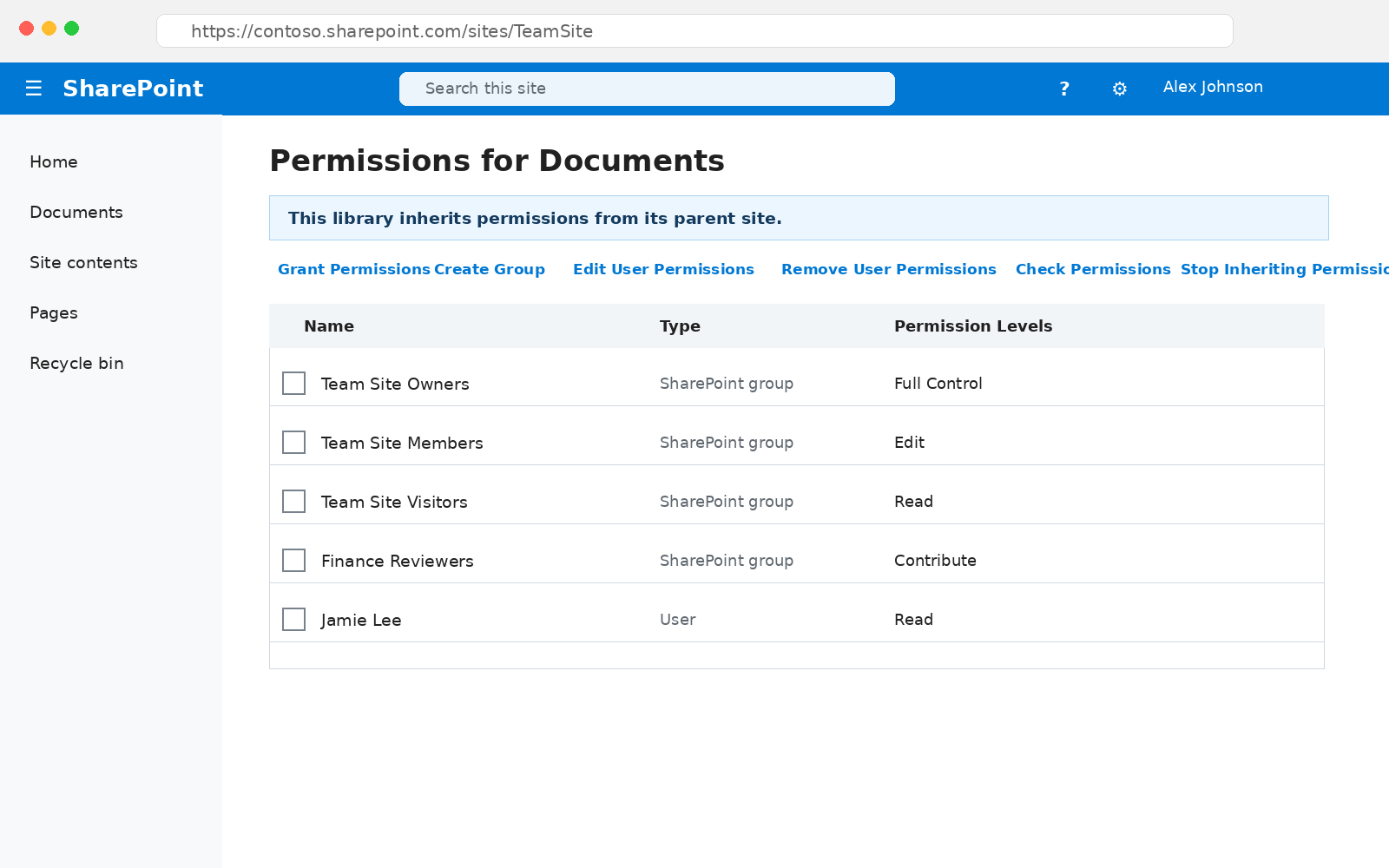
For a site, select the gear icon, choose Site permissions, then open the full permissions settings page. For a list or library, open its settings and select Permissions for this list or Permissions for this document library. The page lists every user and group with access, the permission level each holds, and a banner stating whether the object inherits from its parent.
2. Change a user's or group's permission level
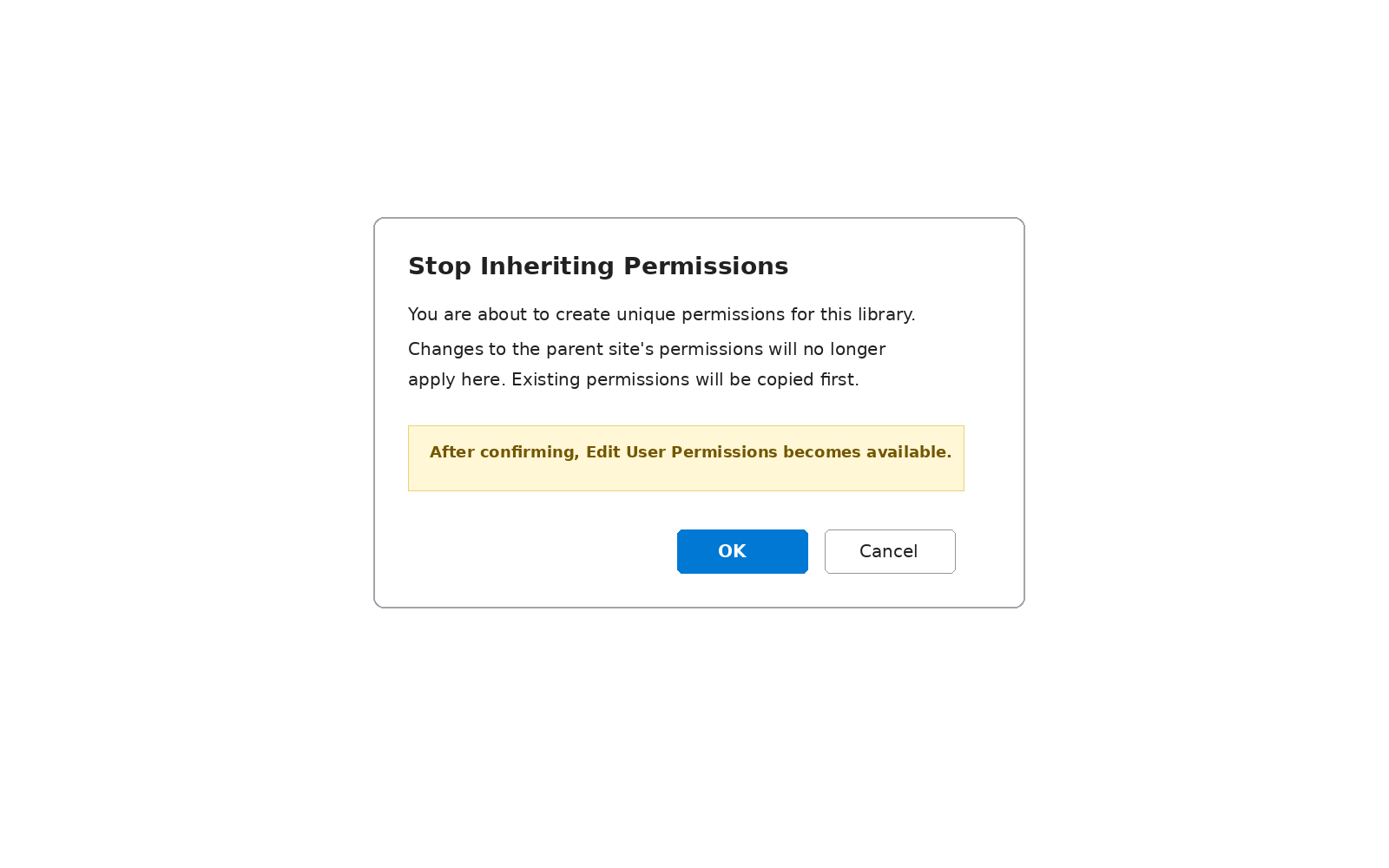
Select the checkbox next to the user or group, choose Edit User Permissions in the ribbon, tick the new level, and clear the old one. If the object still inherits, the ribbon shows Stop Inheriting Permissions instead; select it first, confirm, and the editing controls appear.
3. Remove a user's permissions
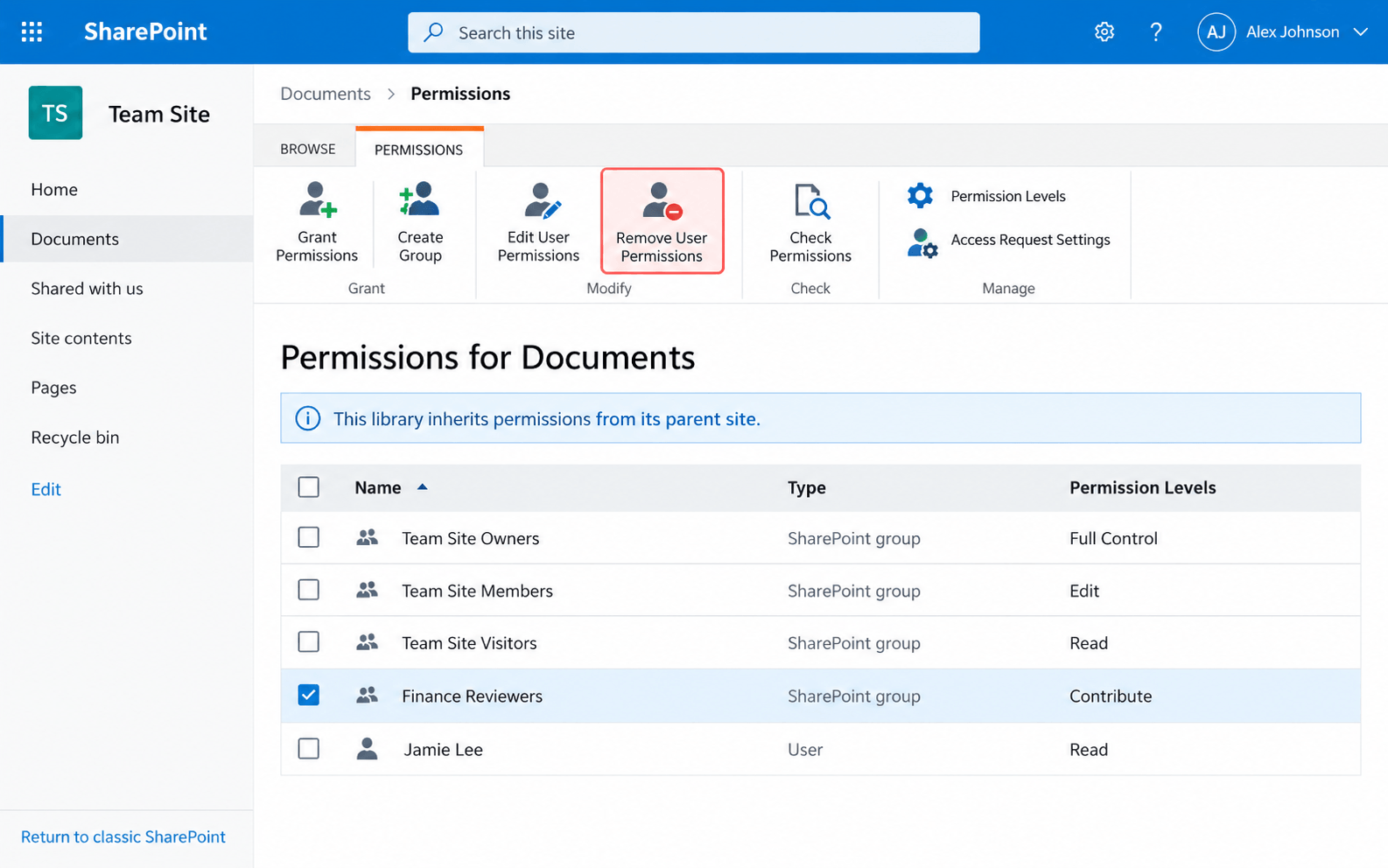
Select the user or group, then Remove User Permissions. This removes their direct entry on this object only. If the user also reaches the object through a SharePoint group or a sharing link, that path stays open, which is why you should follow any removal with a Check Permissions run.
4. Create a custom permission level
From Site permissions on the site collection root, choose Permission Levels in the ribbon, then Add a Permission Level, name it, and select the individual permissions it should contain. Copying an existing level from its edit page and modifying the copy is faster and keeps the default levels untouched.
How to check SharePoint permissions for a specific user
The native Check Permissions tool answers the question, "What can this person do here?" for one user or group on one site. It returns a permission level (Read, Contribute, Full Control, or another level) and how it was granted.
1. Open Check Permissions
Open your SharePoint site settings and select Site permissions, then open the full permissions settings page.
2. Run the check
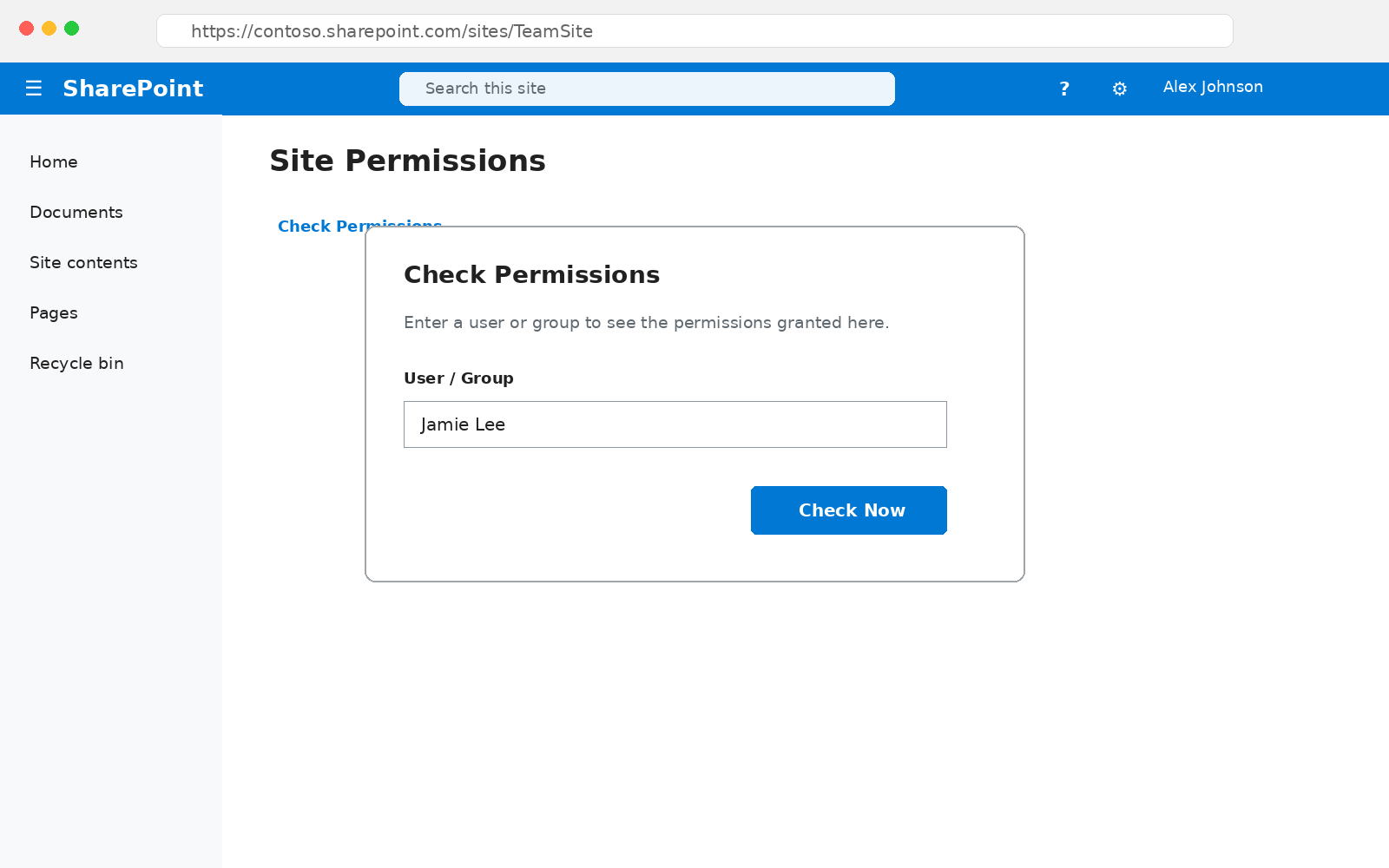
Select Check Permissions in the ribbon, enter the name of the user or group whose access you want to check, and select Check Now.
3. Review the results
The dialog lists each permission level the user holds and the group or direct assignment that grants it, for example, "Edit, given through the Marketing Members group" or "Full Control, given directly."
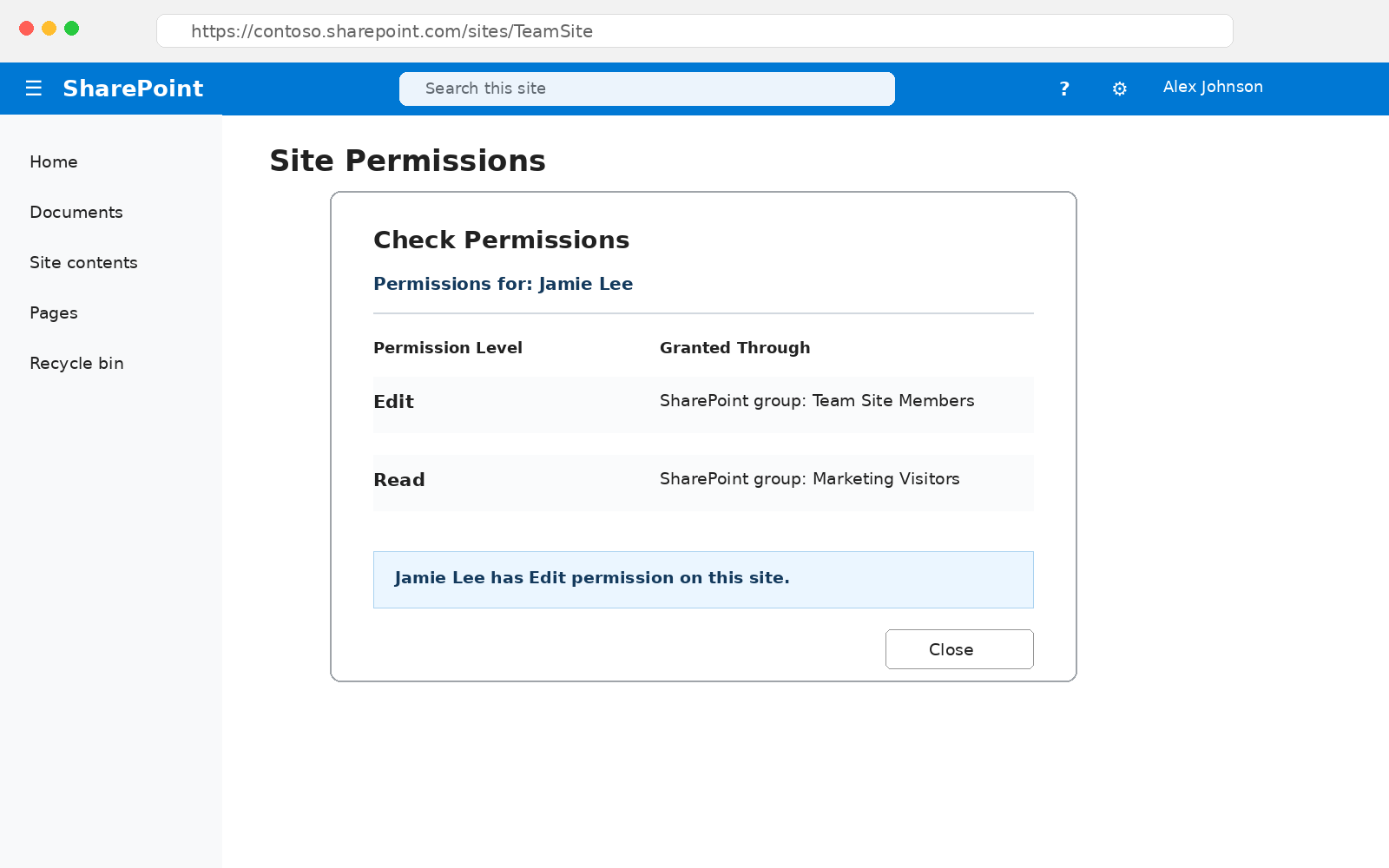
Check Permissions works one principal against one site at a time, so a user with access to dozens of sites needs a check per site. The dialog renders results on screen only, so building an access review from it means retyping them.
It also reports only the site scope; a document someone shared with the user three folders deep won't appear unless you run the same check from that object's Permissions page. For a one-off question like "does this contractor still have access to the finance site," Check Permissions is the right tool. Anything wider needs a script or a report.
Why teams pull a SharePoint permissions report
Check Permissions answers for one person on one site; the moment the question covers a whole library or a whole tenant, you need an export. Teams pull one before an audit or after a sharing incident, when someone has to prove in writing who can access a given library.
PowerShell, a state-in-time reporting tool, or a manual walk of the Permissions pages produces it. The result is a flattened export of every principal, permission level, and scope across the sites you point it at, in a file you can filter, sort, and keep on hand for the next review cycle.
Building that export, and knowing what each field in it means, is its own process. See how to get a SharePoint Online permissions report for the PowerShell scripts for both SharePoint Online and on-premises farms, the native admin center route, and what each exported column represents.
Copilot and SharePoint permissions
Copilot results depend on content the user can access, so every overly broad Read grant and every forgotten sharing link can widen what a prompt can return. In practice, a file no one would find by browsing becomes retrievable when someone asks for it.
The Netwrix 2026 Data and Identity Security Report found that 79% of organizations lack complete visibility into sensitive data used in AI tools, models, or copilots.
Picture an HR site with "Everyone except external users" in its Visitors group. That was a latent problem before Copilot, and after Copilot, a prompt about salary bands could surface it. Reviewing which groups hold Read on sites with sensitive content, and which libraries carry unique permissions that grant wide access, is the pre-rollout work that determines what Copilot can reach.
How to check SharePoint permissions with Netwrix Auditor
SharePoint permission reporting covers current access, permission changes, and the evidence required for repeatable reviews. Netwrix Auditor provides state-in-time SharePoint reports, permission-change auditing, change history, and compliance evidence across a site collection. It addresses the same access question that the native tools answer one user at a time.
By making cross-scope permissions evidence filterable, exportable, and schedulable, it fills the Microsoft-native reporting gap between an on-screen check for one principal and a repeatable access review across a site collection. In the Reports tree, SharePoint and SharePoint Online are exposed as separate report locations, and the navigation path below them differs.
1. Open the Account Permissions in SharePoint report
Open Netwrix Auditor and go to Reports, expand SharePoint (or SharePoint Online for a Microsoft 365 tenant), open State-in-Time, select Account Permissions in SharePoint, and click View.
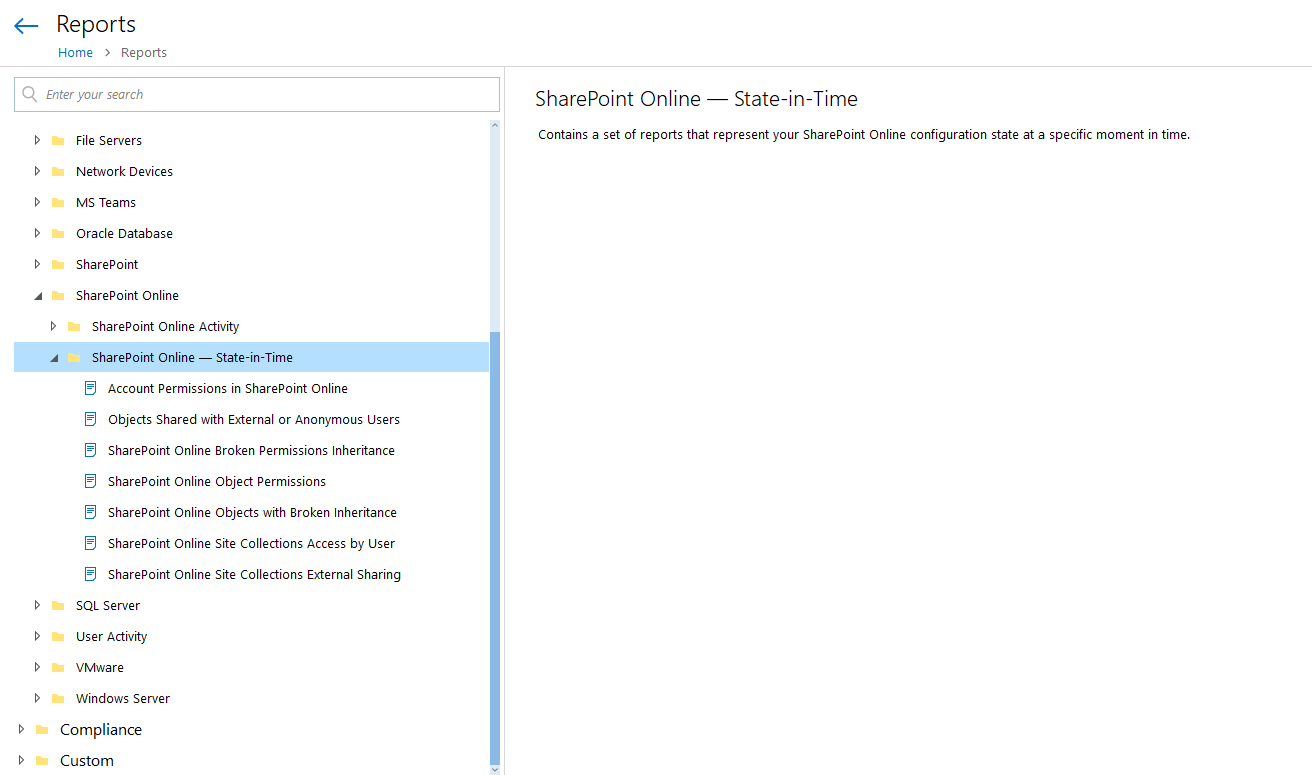
2. Enter the site collection and filter
In the report's filter pane, specify the site collection in the Object Path field, then click View Report. By default, you'll see Full Control permissions to all objects within the specified site collection. Use the filters to limit the report to specific permission levels and securable objects, such as a list, library, or particular item, within the site collection.
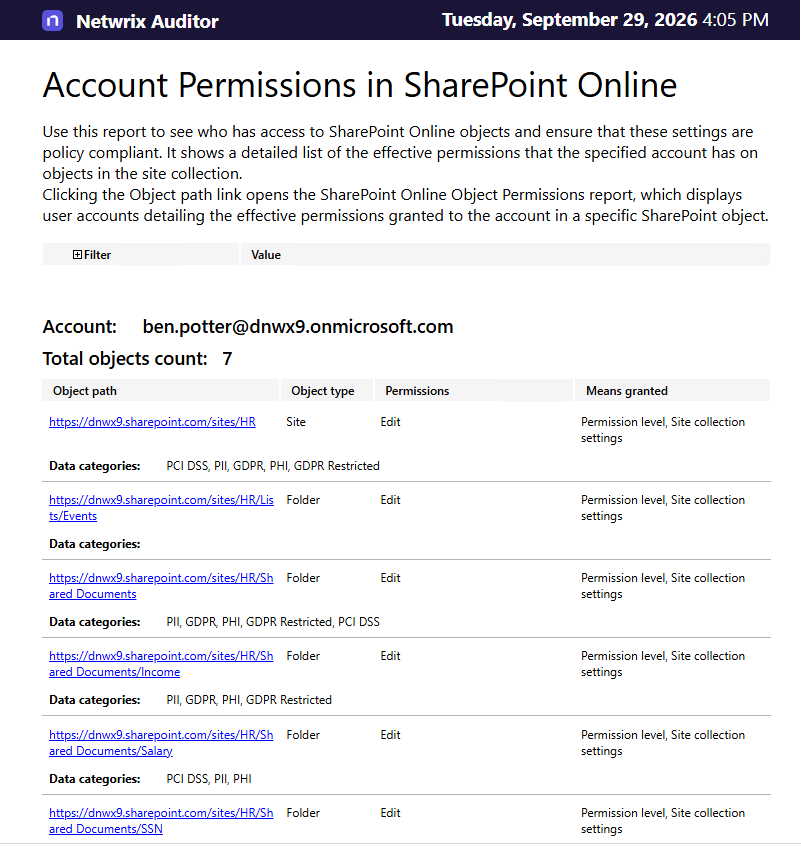
3. Export the results
Click Export → Choose a format from the dropdown menu → Click Save.
Beyond the current state, Auditor lists objects with broken inheritance and audits changes to permissions, permission levels, permission inheritance, group membership, and security policies. It records who made each change, when and where it occurred, which SharePoint group or user it affected, and the before-and-after values. Auditor also tracks configuration changes and attempts to read or modify data.
Schedule report subscriptions to arrive by email so the quarterly review runs without someone having to remember to pull them.
You can also use predefined or custom alerts for critical permission changes, such as a new Full Control grant or a broken inheritance chain, on sites you flag. Clearing stray unique permission scopes and keeping a dated snapshot on file shortens the evidence-gathering stretch of audit preparation.
First National Bank and Trust of Beloit, a family-run bank with 17 locations, used Netwrix Auditor's full suite, including its SharePoint coverage, to reduce Office of the Comptroller of the Currency (OCC) audit preparation from one week to one hour.
Keeping SharePoint access permissions visible across environments
Permission levels, groups, and inheritance describe how SharePoint access should work. The gap between that design and what users can actually reach grows with every sharing link, group change, and library that stops inheriting across SharePoint Online, file servers, and SharePoint Server farms.
Netwrix Auditor covers SharePoint state-in-time reporting, permission-change auditing, and compliance evidence. Netwrix Access Analyzer supports broader data access governance analysis by resolving nested group membership and surfacing effective access, meaning who can actually reach what, across file servers and Active Directory.
Its 40+ data collection modules support enterprise data discovery, classification, and access governance. Together, these two products connect SharePoint permission evidence with the identity paths behind access.
Request a demo to see how Netwrix Auditor and Netwrix Access Analyzer turn SharePoint permission data into scheduled reports and audit evidence.
Frequently asked questions about how to check SharePoint permissions
Share on