
How to Detect Who Read a File on Windows File Servers
Native Auditing
- Navigate to the required file share → Right-click it and select "Properties".
- Switch to the "Security" tab → Click the "Advanced" button → Go to the "Auditing" tab → Click the "Add" button.
- Configure the following settings: Principal: "Everyone"; Type: "All"; Applies to: "This folder, subfolders and files"; Advanced Permissions: "List folder / read data" → Click "OK" three times.
- Log on to your domain controller and run gpmc.msc → Create a new GPO and define its name → Go to “Computer Policy” → Click “Computer Configuration” → Choose “Windows Settings” → Click “Security Settings” and enable the following settings:
- Local Policies → Audit Policy → Audit object access → Define → Success and Failures
- Advanced Audit Policy Configuration → System Audit Policies → Object Access → Audit File System → Define → Success and Failures
- Advanced Audit Policy Configuration → System Audit Policies → Object Access → Audit Handle Manipulation → Define → Success and Failures
- Go to Event Log → Define and specify the following settings:
- Maximum security log size: 4GB
- Retention method for security log: “Overwrite events as needed”
- Link the new GPO to an OU with file servers as follows: Go to "Group Policy Management" → Right-click the OU → Click "Link an Existing GPO" → Select the GPO that you created.
- Force a Group Policy update on the selected OU: Go to "Group Policy Management" → Right-click the OU → Сlick "Group Policy Update".
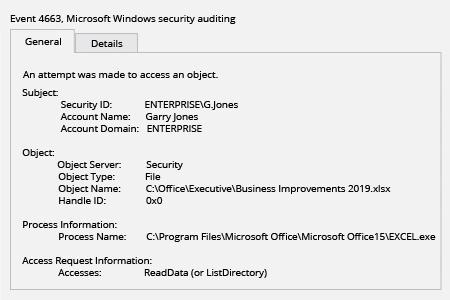
- Open Event Viewer → Search the Security Windows Logs for event ID 4663 with the string "Accesses: ReadData (or ListDirectory)" and review who read or attempted to read files on your file servers.
Netwrix Auditor for Windows File Servers
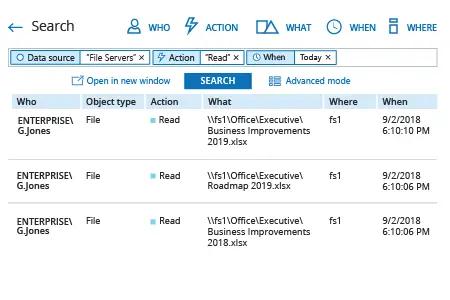
- To find access auditing events, run Netwrix Auditor → Navigate to “Search” → Click “Advanced mode” if not selected → Set up the following filters:
- Filter = “Data source”
Operator = “Equals”
Value = “File Servers” - Filter = “Action”
Operator = “Equals”
Value = “Read”
- Filter = “Data source”
- Click the “Search” button and review who read or attempted to read files on your file servers.
Share on