
How to Monitor User Logons in a Domain
Native Auditing
- Run gpmc.msc → Create a new GPO → Edit it: Go to "Computer Configuration" → Policies → Windows Settings → Security Settings → Advanced Audit Policy Configuration → Audit Policies → Logon/Logoff:
- Audit Logon → Define → Success And Failures
- Go to Event Log → Define:
- Maximum security log size to 4gb
- Retention method for security log to "Overwrite events as needed".
- Link the new GPO to OU with Computer Accounts: Go to "Group Policy Management" → right-click the defined OU → choose Link an Existing GPO → choose the GPO that you created.
- Force the group policy update: In "Group Policy Management" right click on the defined OU → click on "Group Policy Update".
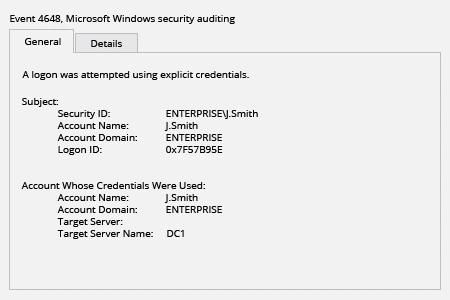
- Open Event viewer and search Security log for event id’s 4648 (Audit Logon).
Netwrix Auditor for Active Directory
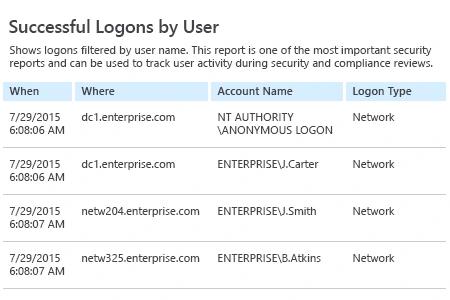
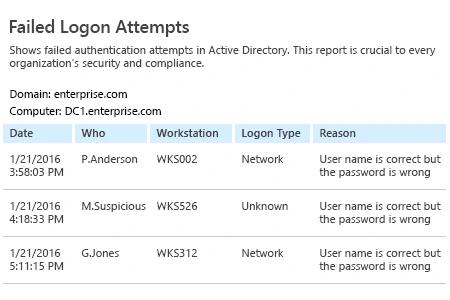
- Run Netwrix Auditor → Navigate to "Reports" → Expand the "Active Directory" section → Go to "Logon Activity" → Select "Successful Logons" or "Failed Logons" → Click "View".
If you want to get this report by email regularly, simply choose the "Subscribe" option and define the schedule and recipients.
Share on